How to Create a Presentation with AI in Under 5 Minutes
We've all been there. It's 11 PM, you have a presentation tomorrow, and you're staring at a blank slide deck wondering where to start. You spend an hour choosing fonts, another hour finding images, and before you know it, it's 3 AM and your slides still look like they were made in 2005.
What if you could go from a topic — or even a raw document — to a polished, professional presentation in under 5 minutes?
That's not a hypothetical anymore. Here's exactly how to do it.
The Traditional Way Is Broken
The average professional spends 6-8 hours creating a single presentation. That includes:
- Researching and outlining content
- Writing slide text and speaker notes
- Choosing layouts, fonts, and color schemes
- Finding and placing images
- Tweaking alignment and spacing
Most of that time isn't spent on what you're saying — it's spent on how it looks. That's a massive waste of expertise.
The 5-Minute Approach
Here's the workflow that changes everything:
Step 1: Start with Your Content (30 seconds)
You have three options:
- Type a topic — "Introduction to Machine Learning for Business Leaders"
- Paste your text — lecture notes, a report summary, bullet points
- Upload a document — PDF, DOCX, or TXT file
The key insight: you don't need to prepare your content for the presentation tool. Just give it your raw material.
Step 2: Choose Your Style (15 seconds)
Pick the presentation style that matches your context:
- Default — clean, professional slides for most use cases
- Marketing — bold visual cards with icons and short descriptions
- Academic — structured slides for conferences and lectures
- Infographics — data-rich visual layouts

Step 3: Review the Outline (1-2 minutes)
Before any slides are generated, you get an editable outline. This is where you:
- Reorder topics
- Remove slides you don't need
- Add slides you do
- Adjust the content direction
This step is crucial. AI is great at structure, but you know your audience. Take a minute to make the outline yours.
Step 4: Generate and Refine (2-3 minutes)
Hit generate, and within a minute or two, you have a complete presentation with:
- Professionally designed slides
- Relevant imagery
- Consistent color scheme and typography
- Proper slide hierarchy (title → content → conclusion)
From here, you can:
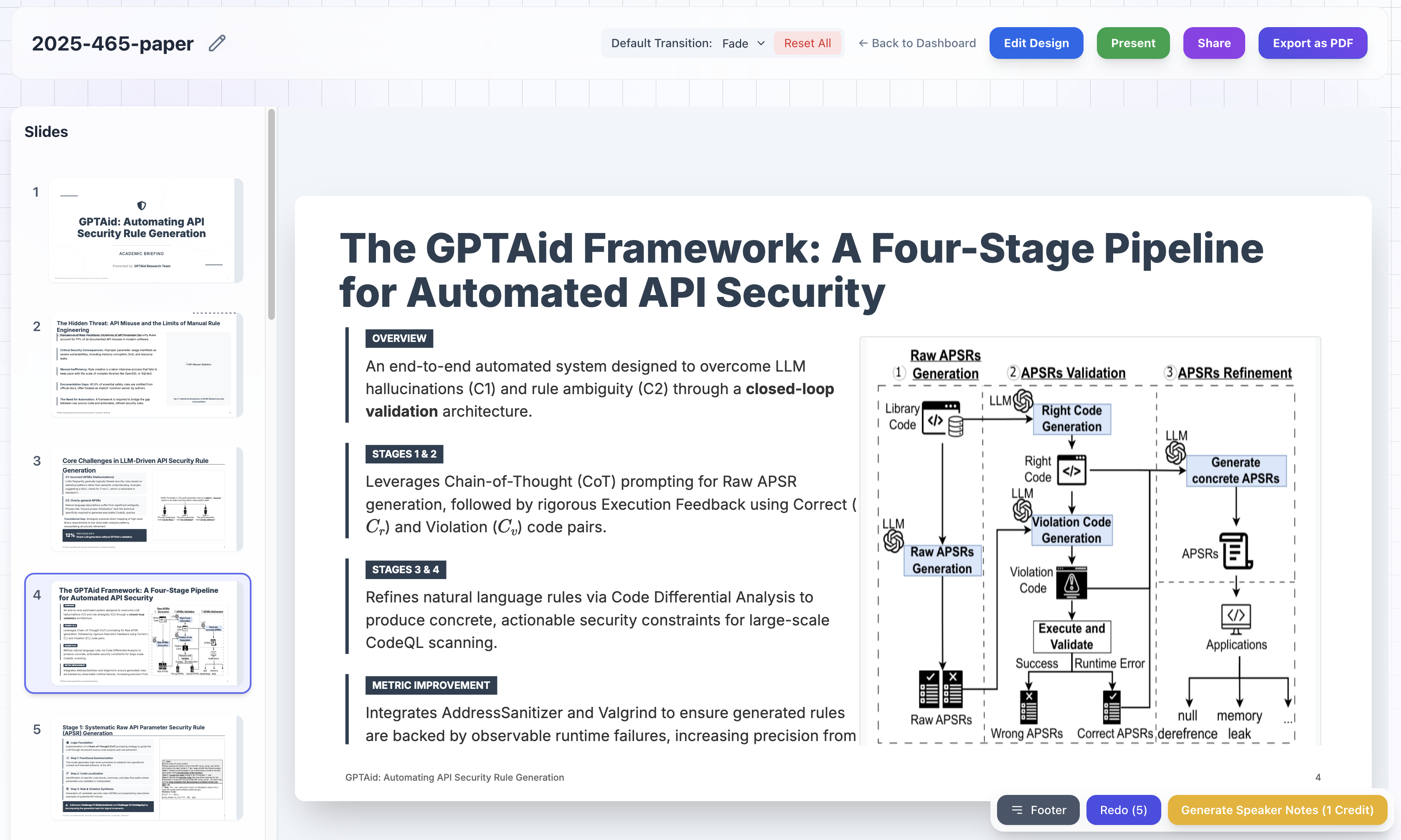
- Redo any slide you don't like (the AI generates a fresh version)
- Edit text directly in the slide editor
- Add new slides with a simple prompt
- Reorder slides by dragging
Tips for Getting the Best Results
After watching thousands of presentations get generated, here are the patterns that produce the best output:
Be Specific About Your Audience
"Machine Learning" gives you generic slides. "Machine Learning for non-technical marketing managers at a SaaS company" gives you slides that actually land.
Provide More Context, Not Less
If you upload a 20-page report, the AI has rich context to draw from. If you type three words, it has to guess. More input = better output.
Use the Outline Step
Skipping the outline review is the #1 cause of "meh" presentations. Two minutes of editing the outline saves you twenty minutes of editing slides.
Don't Settle on the First Generation
If a slide doesn't feel right, hit redo. The AI generates a completely different approach each time — different layout, different emphasis, different imagery.
When AI Presentations Make Sense
AI-generated presentations aren't for every situation. They work best when:
- You need something fast — weekly team updates, internal reviews, class lectures
- Your content already exists in another format — reports, documents, research papers
- You need a starting point — even if you'll customize heavily, starting from a complete deck beats starting from blank
- Consistency matters — generating multiple presentations for the same course or series
They're less ideal when you need pixel-perfect brand compliance or highly custom animations. But for 90% of presentations, AI gets you 90% of the way there in 5% of the time.
The Bottom Line
The question isn't whether AI can make presentations. It clearly can. The question is whether you want to spend 6 hours doing what can be done in 5 minutes.
Your time is better spent on rehearsing your talk, understanding your audience, and refining your message — not dragging text boxes around a screen.